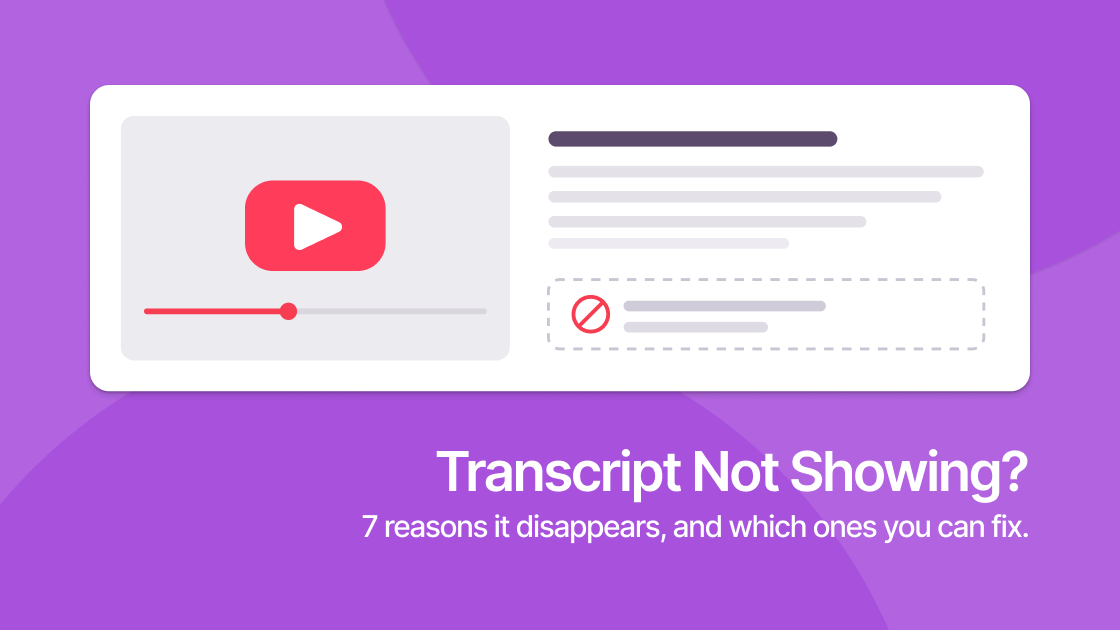
You open a video, expand the description, and look for Show transcript. It is not there.
The YouTube transcript not showing is almost always a caption problem rather than a bug on your end, and roughly half the time it takes ten seconds to fix. Here is how to tell which half you are in.
The Short Answer
YouTube's transcript panel reads an existing caption track. It does not transcribe audio on demand. No captions means no transcript, and YouTube hides the button entirely rather than showing an empty panel.
So the real question is never "where is the button." It is "does this video have captions, and can I reach them?"
How to Enable the Transcript in YouTube
Before troubleshooting, rule out the obvious. YouTube has moved this control repeatedly, and on the current desktop layout it is not on the player at all.
- Click ...more to expand the full video description
- Scroll to the bottom of the expanded description
- Click Show transcript
On some layouts it sits behind the ⋯ menu under the player instead. If you have not expanded the description fully, the button is genuinely not visible. This is the single most common false alarm.
There is no setting to turn transcripts on. The panel appears whenever a caption track exists and is hidden whenever one does not, so if the steps above produce nothing, the rest of this guide is about which of those two situations you are in.
The 7 Reasons It Disappears
1. The Video Has No Captions At All
The creator never uploaded a caption file, and auto-captions were never generated. Nothing to show.
Fixable? Not through YouTube. See getting the transcript anyway below.
2. Auto-Captions Are Still Processing
Newly published videos have a window where captions do not yet exist. For a long upload this can run to 24 hours.
Fix: Wait and reload. If the video went up in the last hour, this is almost certainly your answer.
3. The Creator Disabled Captions
Channel owners can turn off automatic captions for a video or across their whole channel. Some do it because auto-caption errors get quoted out of context.
Fixable? No. This is a deliberate choice by the uploader.
4. The Audio Cannot Be Auto-Captioned
YouTube's speech recognition gives up on music-heavy tracks, heavy background noise, several people talking over each other, or a language it does not support. It produces no track rather than a bad one.
Fixable? Not through YouTube, but audio-based transcription tools often manage where YouTube declines.
5. A Browser Extension Is Interfering
Ad blockers, YouTube "enhancer" extensions, and custom CSS themes frequently break the transcript panel. They alter the DOM the panel attaches to.
Fix: Open the video in an incognito window, where extensions are disabled by default. If the transcript appears, an extension is the culprit. Re-enable them one at a time to find it.
6. Stale Cache or a Failed Partial Load
The panel occasionally fails to initialise and stays hidden until the page state is reset.
Fix: Hard reload with Ctrl+Shift+R (Cmd+Shift+R on Mac). If that fails, clear site data for youtube.com.
7. You Are on Mobile
The iOS and Android apps have hidden, restored, and re-hidden transcripts across versions. It is inconsistent by app version, not by video.
Fix: Open the video in a mobile browser and request the desktop site, or use a computer.
A Quick Diagnostic
Work through this in order. It takes under a minute and eliminates the fixable causes first.
| Check | If it works | If it doesn't |
|---|---|---|
| Did you expand ...more fully? | You were looking in the wrong place | Continue |
| Is the CC icon on the player? | Captions exist, so it's a display problem; go to the next rows | No caption track exists; jump to the section below |
| Hard reload the page | Stale state | Continue |
| Open in incognito | An extension was interfering | Continue |
| Try on desktop instead of mobile | App-version limitation | The video genuinely has no usable captions |
That CC icon is the fastest signal in the whole process. If it is present, a caption track exists and your problem is retrieval. If it is absent, no amount of troubleshooting the interface will help.
Getting the Transcript Anyway
Here is the part most troubleshooting guides skip: the transcript panel being hidden does not always mean the caption track is gone.
YouTube's interface and YouTube's caption data are two different things. A caption track can exist and be perfectly retrievable while the panel refuses to render it: because an extension broke the panel, because you are on a mobile app version that dropped the feature, or because the interface is region-gated.
Tools that read the caption track directly bypass the interface entirely. ekstrakt does this: paste the URL and it pulls the transcript with timestamps, including for videos where Show transcript is nowhere to be found. It also routes around geo-restrictions, which is the cause behind a surprising number of "no transcript" reports from outside the US and EU.
What no tool can do is invent captions that were never created. If reason 1, 3, or 4 above applies, the caption track does not exist, and any service claiming to "find" it is either transcribing the audio itself or overstating things.
If You Just Want the Content
Often the transcript is a means to an end. You want to know what the video says without watching 90 minutes of it.
In that case skip the transcript entirely and go straight to a summary. ekstrakt handles transcript retrieval as an implementation detail and gives you the key points directly, with the full timestamped transcript alongside for when you need to verify a specific claim. The broader workflow is covered in how to summarize YouTube videos, and the Chrome extension does it without leaving the YouTube tab.
If the video that sent you here is a popular one, it may already be done. The video summary library is free to read without signing in, and covers talks like Simon Sinek's TED talk and full lectures like MIT's How to Speak, each with the complete timestamped transcript alongside the summary.
For Creators: Don't Let This Happen to Your Videos
If this is your own video, captions are worth fixing properly. Upload an SRT file rather than relying on auto-captions. Accuracy improves sharply, and caption text is indexed, so it affects how discoverable the video is. Google's add captions guide covers the upload process.
Auto-captions handle accented speech, technical vocabulary, and proper nouns poorly. Those are usually the exact words someone is searching for.
The Takeaway
Expand the description first. It resolves this more often than anything else. Then check for the CC icon: present means the captions exist and something is blocking display, absent means they were never made.
When the interface is the obstacle rather than the data, read the caption track directly. Try it on the video that sent you here at ekstrakt.app.